When production breaks, three questions matter: What happened? When did it happen? Why did it happen?
In practice, answers are often scattered—metrics in one place, traffic logs in another, and change history somewhere else.
There's another reality: exports to external systems are typically selective. If the signal you need during an incident was never selected for export, you won't have it.
TR7's approach is clear: export integrations matter, but investigation shouldn't depend solely on them. That's why TR7 keeps critical signals on the appliance, aligned on a single timeline.
A signal that isn't captured is a risk that remains invisible.
Why export-only isn't enough?
SIEM, log servers, and Prometheus/Grafana platforms are valuable for enterprise visibility. However, investigation success depends on having the right data available when you need it.
Selective collection is inevitable
Cost and noise mean not every metric/log gets exported. When an incident occurs, the critical signal may be missing.
Correlation gets harder as data scatters
When metrics, events, audit, and traffic logs are in different places, building a single timeline takes longer.
The pipeline is another risk area
Agent, network, quota/limit, or indexing issues can cause data loss—especially during incidents.
Investigation-Ready
Spend time solving, not collecting data. TR7 keeps critical signals ready on the appliance.
Dynamic Flow Panel: Runtime visibility and fast starting point
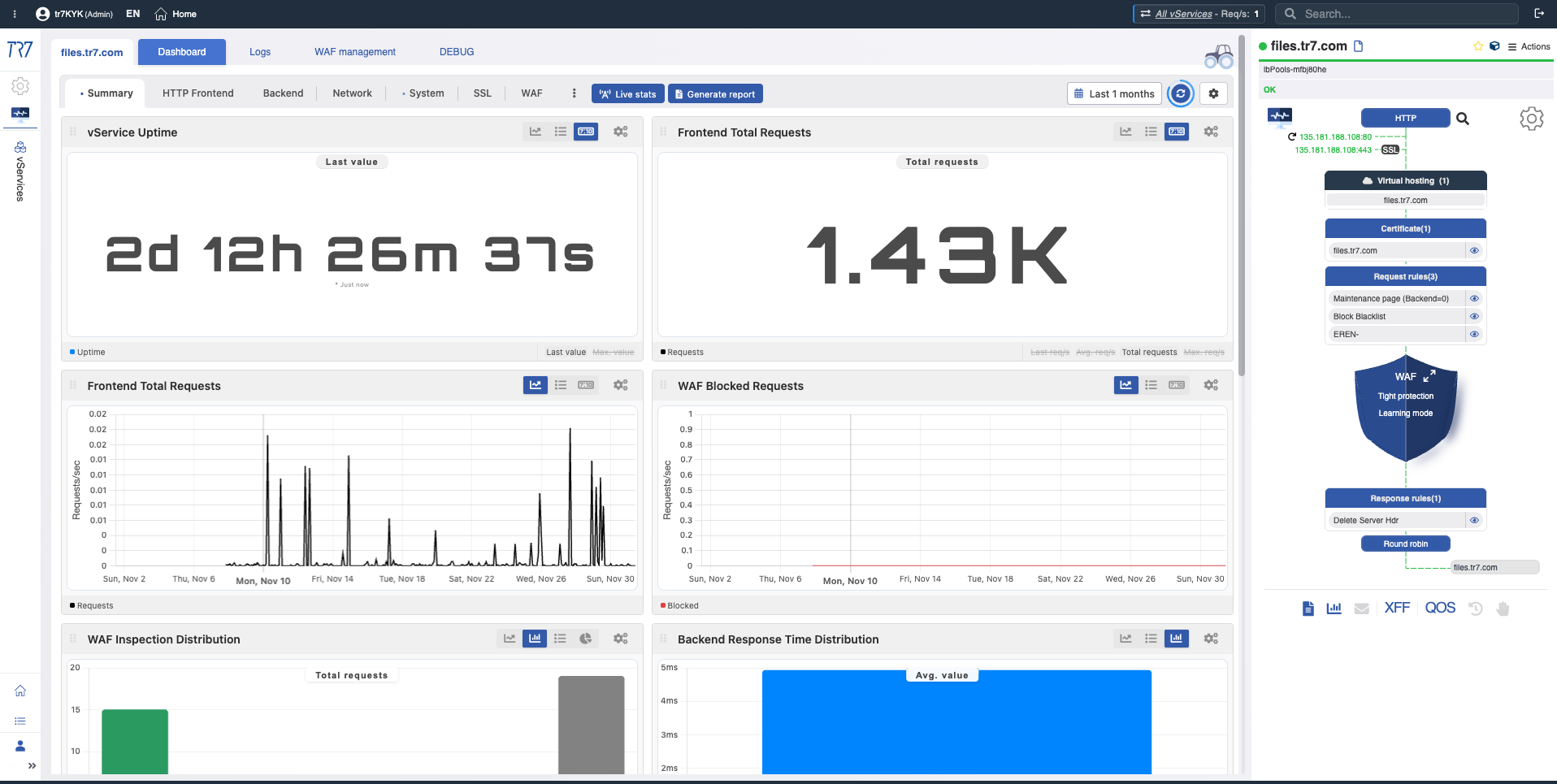
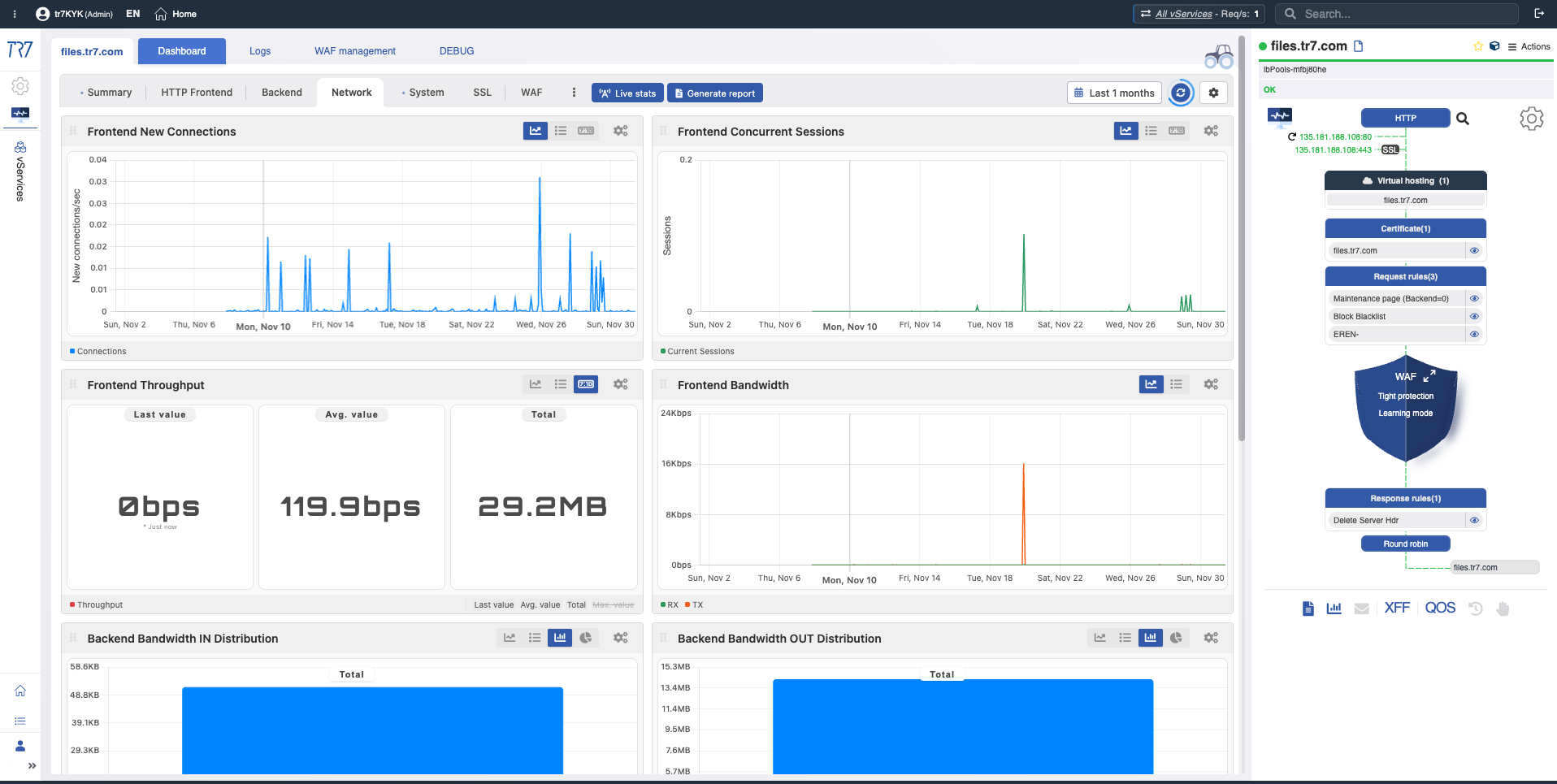
In TR7's interface, service topology can be monitored live (runtime) through the Dynamic Flow Panel. Complete Control →
The panel displays service status with colors. For example, if the interface link serving a vService's IP goes down, the system generates a warning and the service name changes from green to yellow.
This lets operators see what to investigate immediately. Triage starts faster and investigation time shortens.
Status Colors
Colors in the Flow Panel help you quickly read service status:
Green: Normal
Service connections and health checks are working as expected.
All backends healthy
Interface links up
Health-checks passing
Routine monitoring
Yellow: Attention
There's a condition that needs monitoring.
Interface link down (service may still work)
One backend health-check failed
Approaching resource threshold
Quick check via metrics + notification + audit
Red: Critical
There's a problem affecting service.
Backends down
vService unreachable
Critical config error
Fast triage: metric + event + audit
Example Investigation Scenarios
The following examples show how a typical investigation progresses on TR7.
Scenario A: Latency increase
Complaint: 'Application is slow'
Check vService response time trend → any spikes?
Check backend response time distribution → which backend is slow?
Verify with health-check and connection distributions
Any resource alerts in notification logs during the same timeframe?
Audit trail: any recent changes?
Result: LB layer or specific backend — quickly clarified
Scenario B: WAF blocks increased
Complaint: 'Form submissions failing'
Check WAF blocked metric → any spikes?
Find triggered rule from HTTP/WAF logs
Determine from request details: false positive or real attack?
Audit trail: any rule/policy changes?
Use targeted debug if needed to inspect only relevant traffic
Result: Rule tuning or security action — decide with data
Device Overview: Investigation starting point
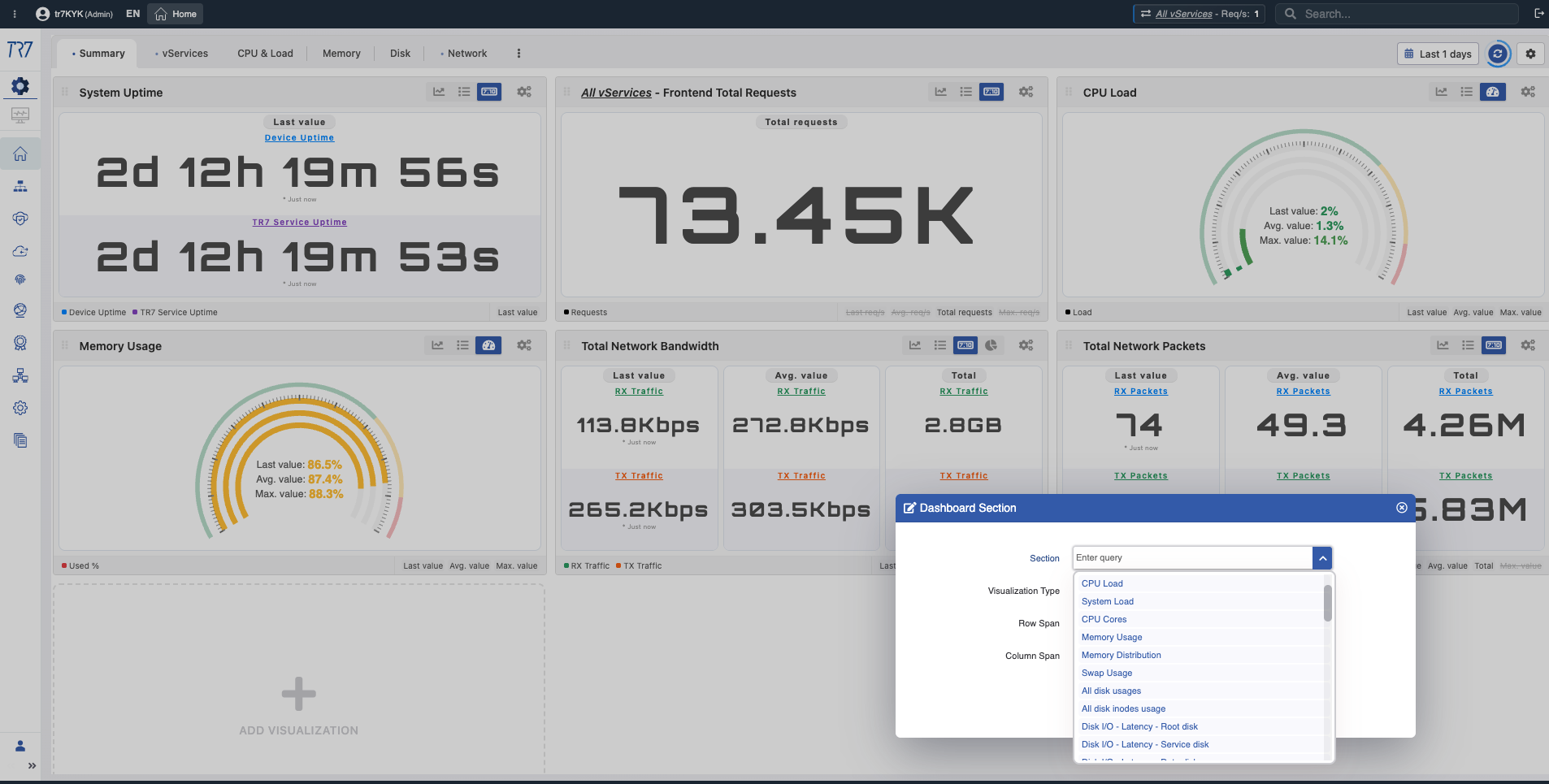
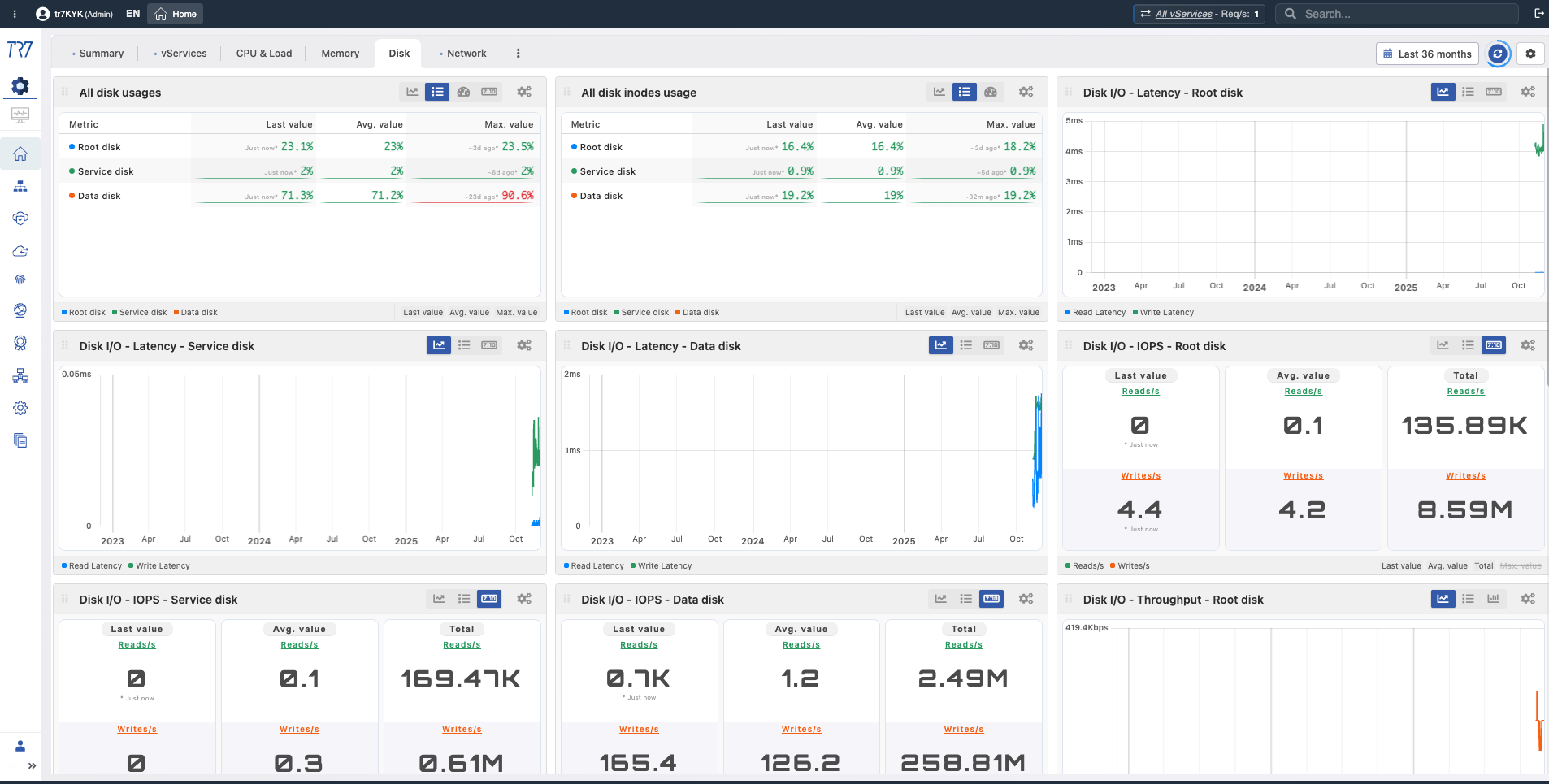
Incident investigation always starts with the device overview. CPU, memory, disk usage, and system health — assess the device's overall state at first glance. Time range selection enables retroactive forensics.
System Summary: Uptime, total requests, CPU load, memory, bandwidth — quickly assess device state during an incident.
Disk & I/O: Usage, inode, latency, IOPS — is log writing or cache performance affected?
Service & Backend: Performance and health metrics
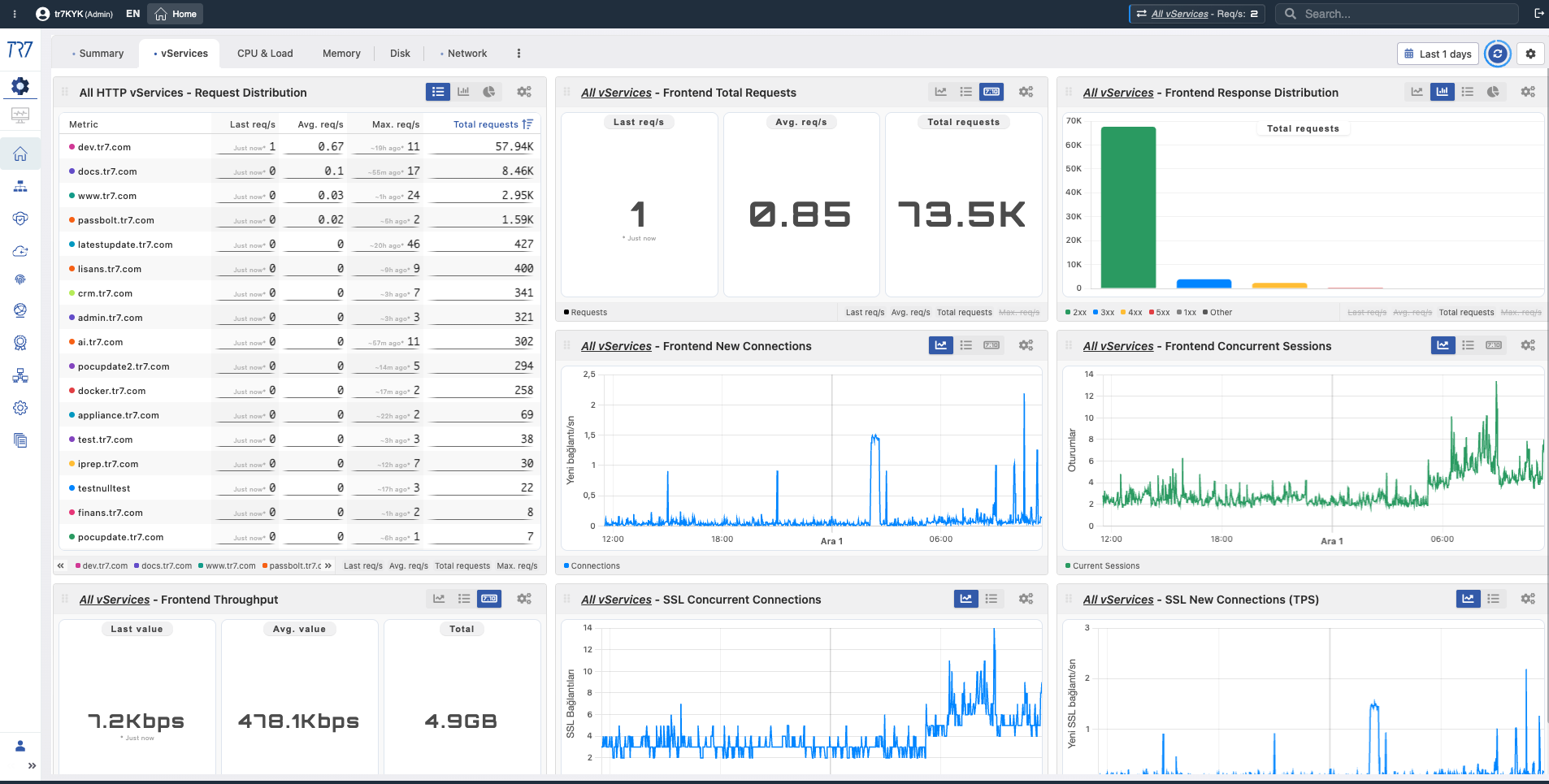
After the system overview, drill down to the service layer. All vServices' request distribution, response codes, backend health, and service topology via Dynamic Flow Panel — all at a glance. Each vService has its own dashboard.
vService Overview: Request distribution and response codes (2xx/3xx/4xx/5xx) across all services — which service has anomalies?
vService Summary: Uptime, frontend requests, WAF block count, and Dynamic Flow Panel — service's current state.
Customizable Metrics: SSL reuse, compression, cache hit ratio — add metrics needed for investigation.
Backend Distributions: Which backend is slow? Which gets more requests? Response time and connection metrics.
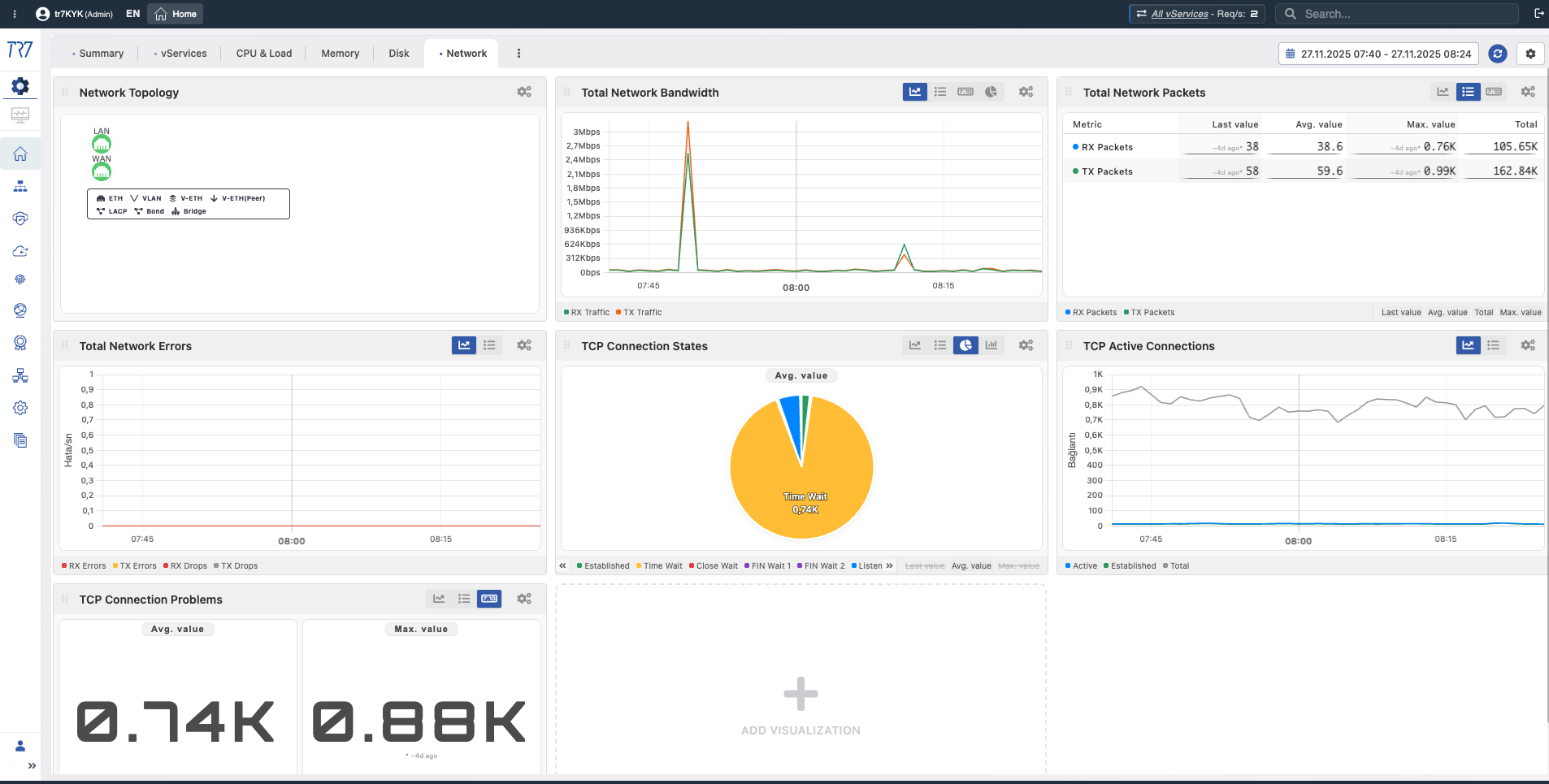
Network & Interface: Connection status and traffic flow
Is the problem in the service or the network? Topology, bandwidth, TCP state distribution, and interface metrics answer this question. Link status changes and packet errors quickly reveal network layer issues.
Network Topology: Bandwidth, TCP state distribution — first clue for service vs network issue separation.
Interface Metrics: RX/TX bandwidth, packet counts, errors — link performance and health.
vService Network: Per-service throughput and connection states — is traffic pattern normal?
HTTP & WAF Logs: Request-level investigation
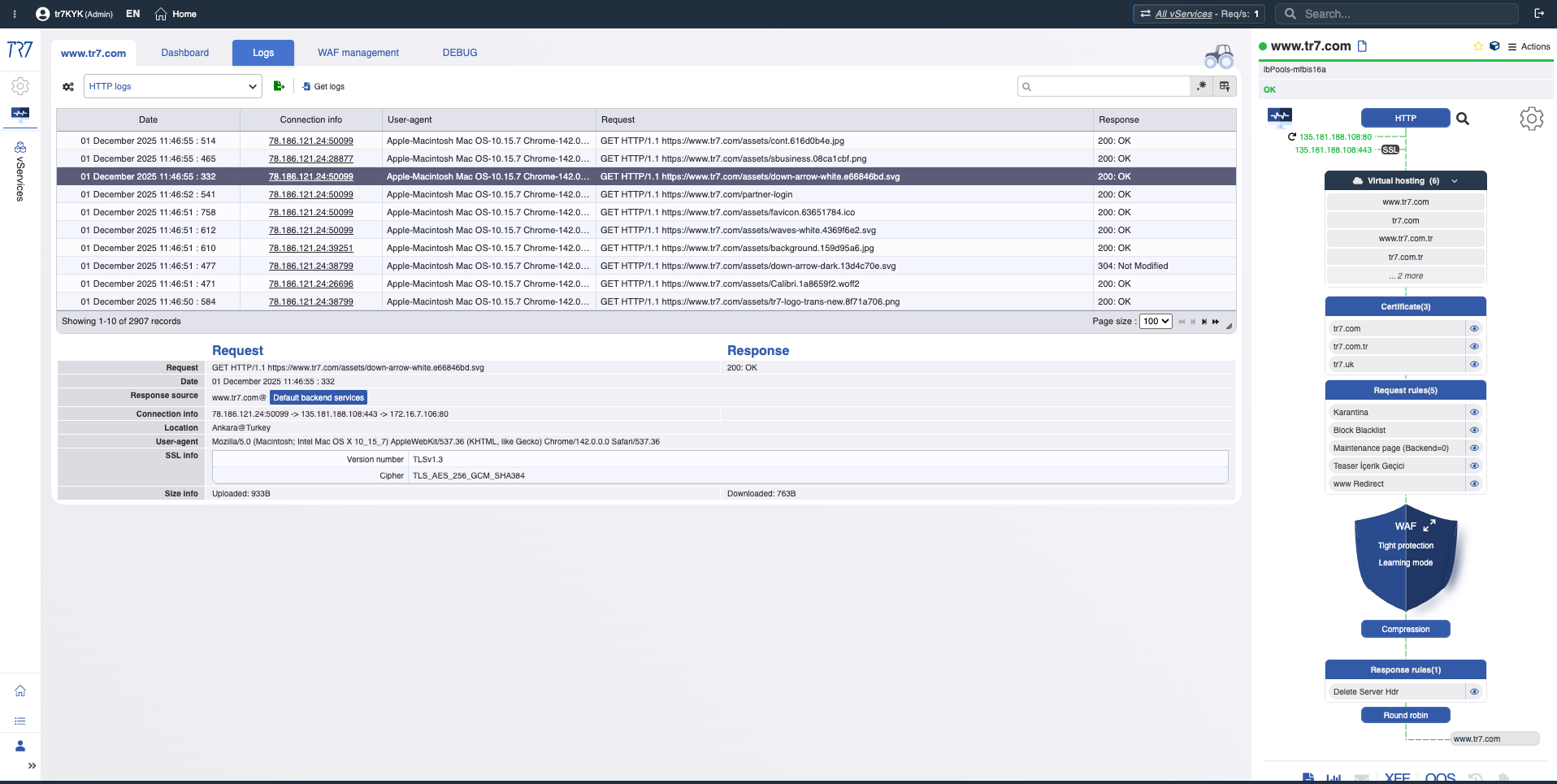
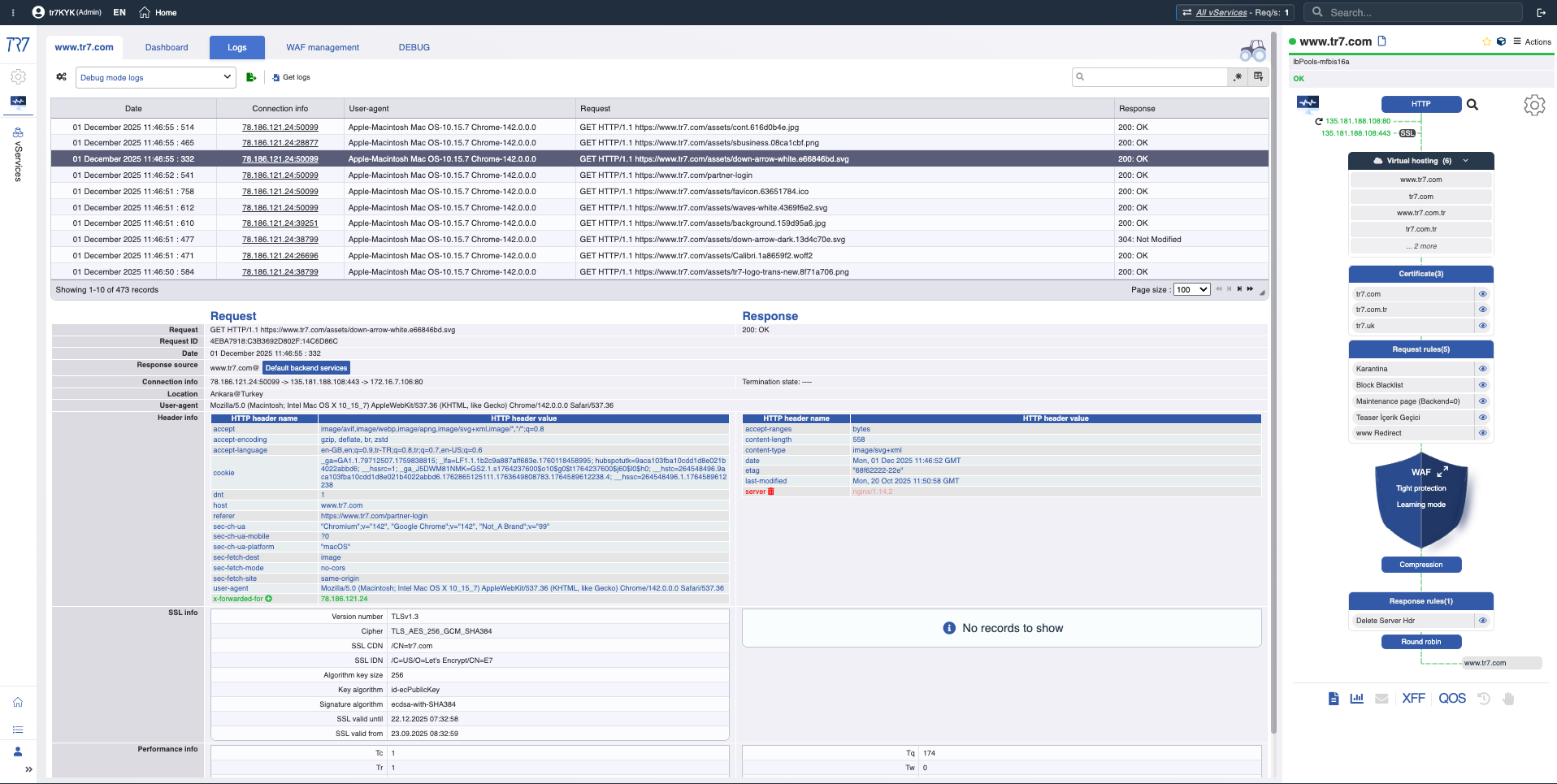
HTTP traffic and WAF events are visible without enabling debug. When needed, targeted debug captures full details for specific host/path/header only. Request-level forensics without impacting production.
HTTP Logs: Source IP, destination, response code, size, duration — basic visibility even with debug off.
Targeted Debug: Full headers and cookies for relevant traffic only — detail without impacting production.
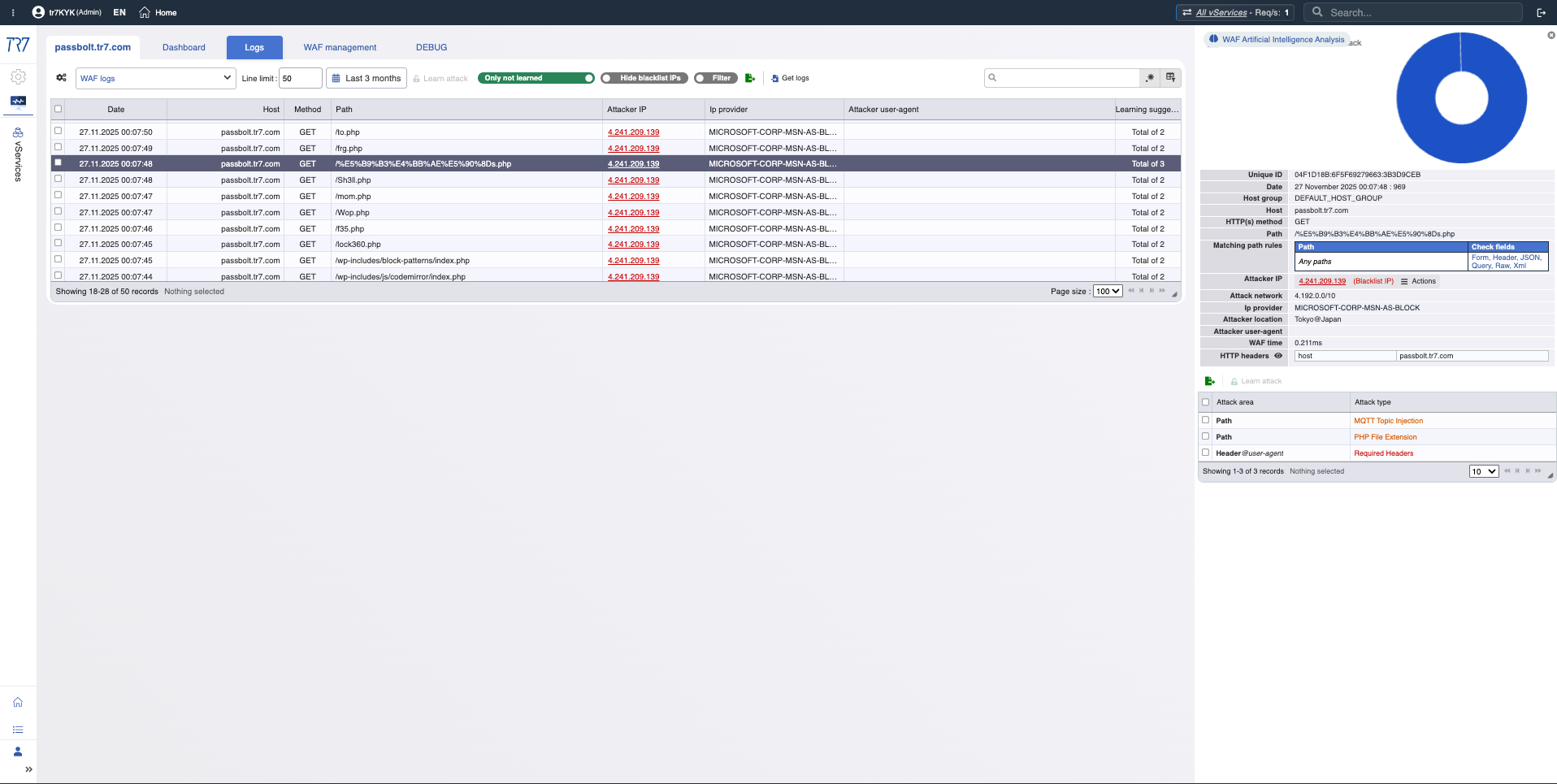
WAF Logs: Triggered rule, request details, behavioral analysis — data for false positive evaluation.
IP Intelligence & WAF: Threat profile
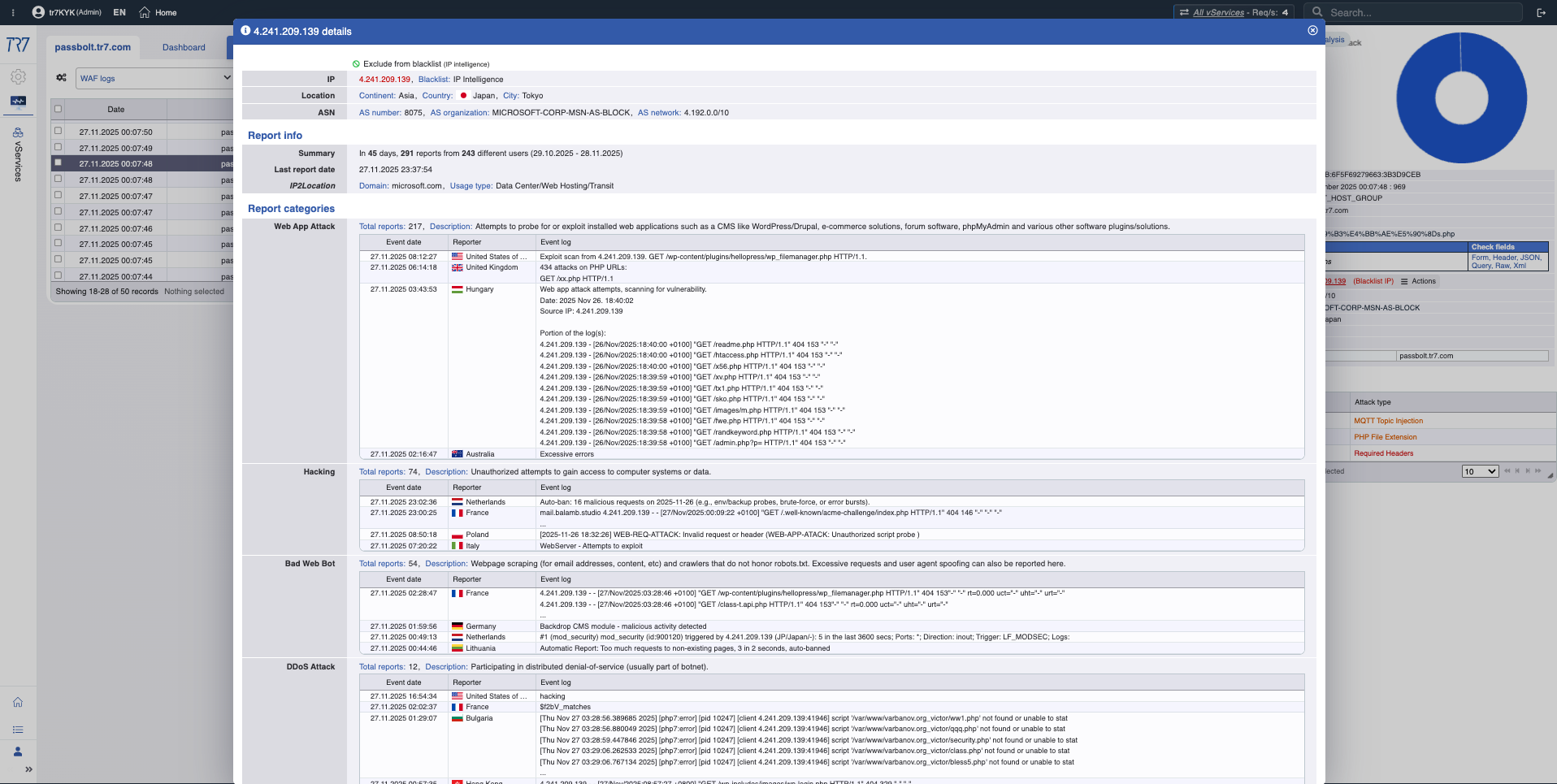
IP reputation scores and WAF metrics quickly reveal the attacker profile. First answer to 'false positive or real attack?' is here. Threat categories (botnet, proxy, VPN, Tor) show the nature of the source IP.
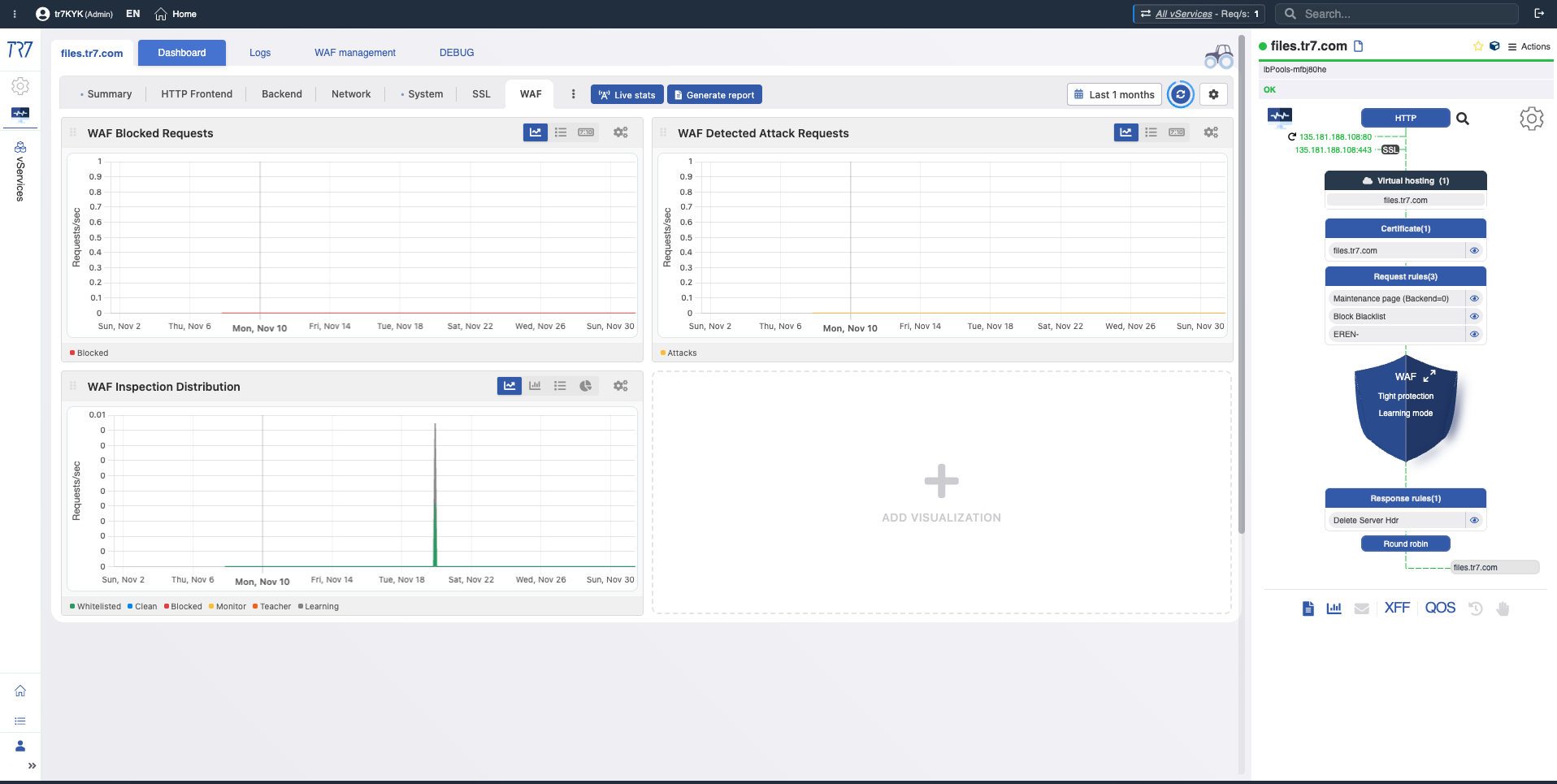
WAF Metrics: Blocking trend, inspection distribution — security events overview.
Event Timeline: Notifications and audit trail
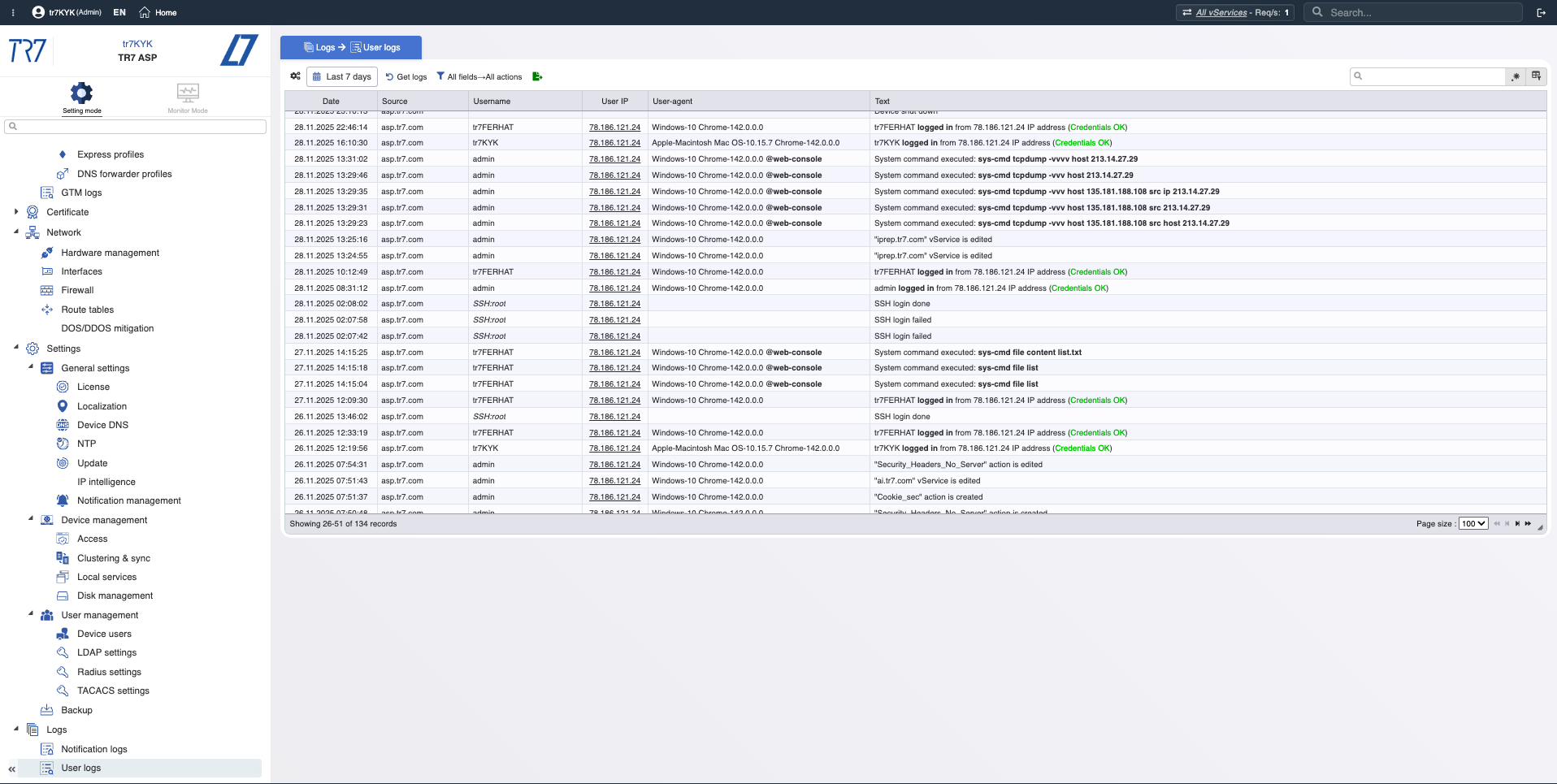
Metrics alone aren't enough. Which alerts fired? Who changed what and when? In incident investigation, 'which change affected what?' is critical. TR7 keeps notification/event records and audit trail together, speeding up this correlation.
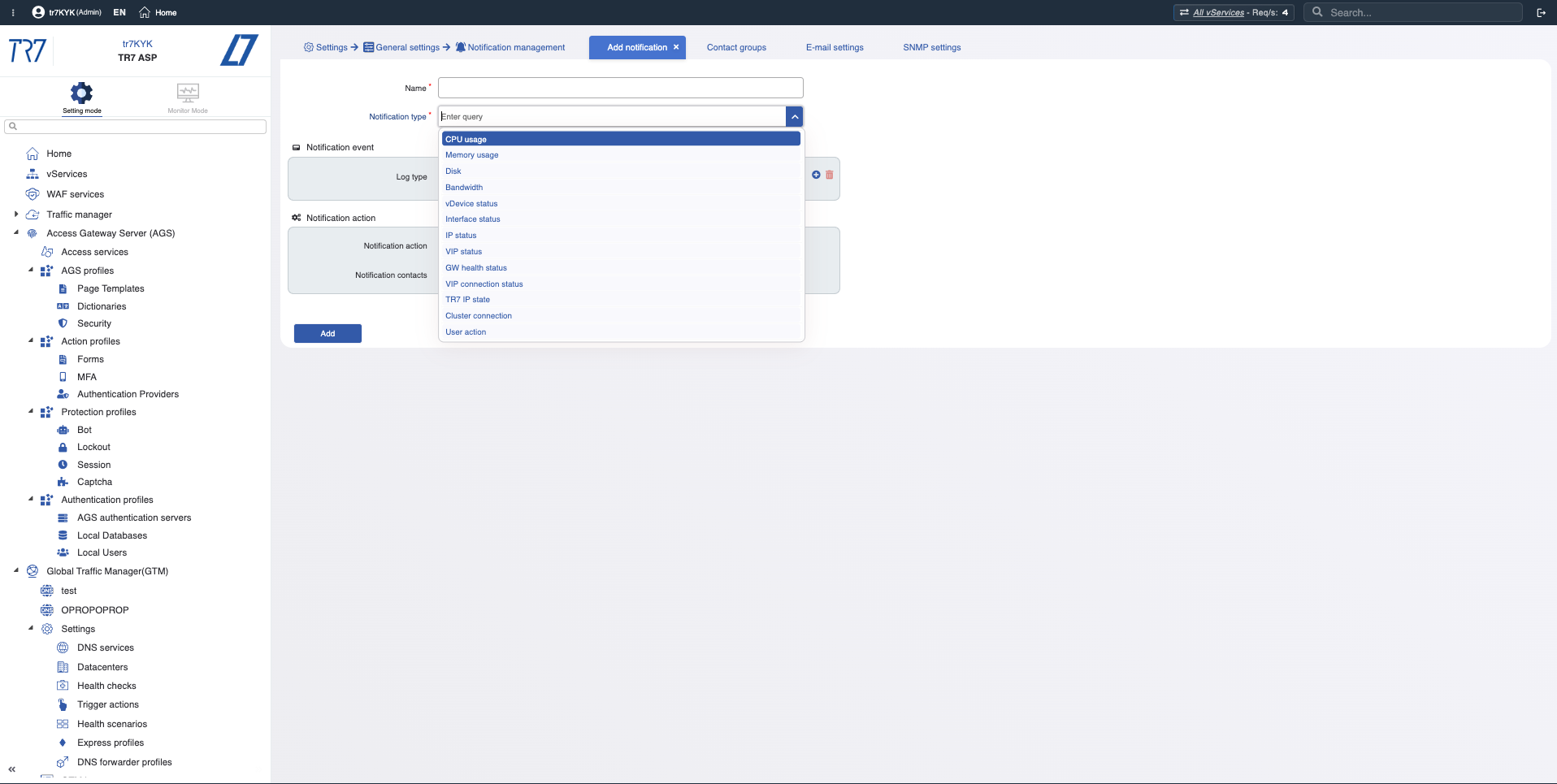
Notification Types: CPU, memory, disk, bandwidth, service status — what events are being monitored?
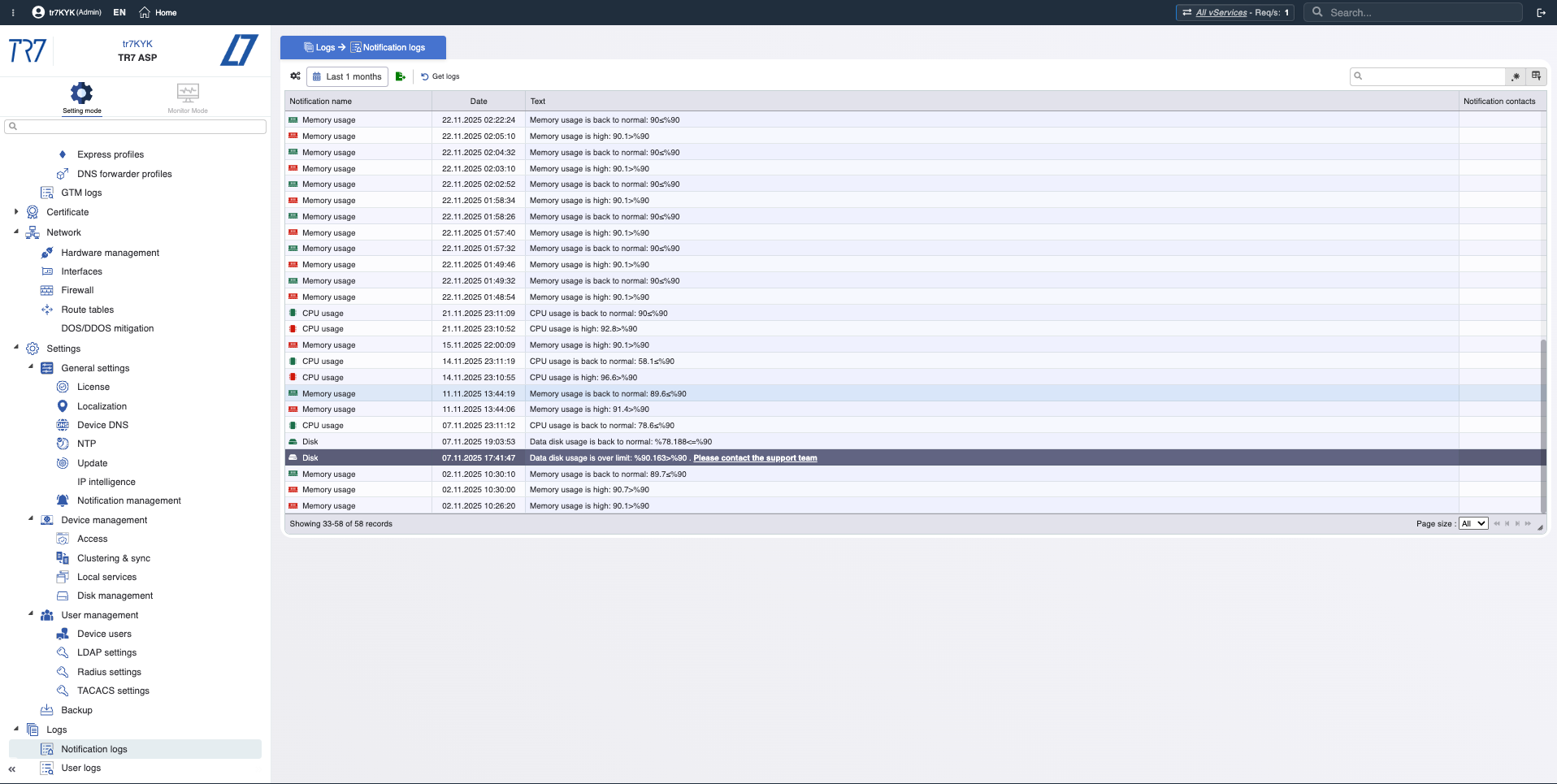
Notification History: Chronology of triggered alerts — what warnings came during the incident?
Audit Trail: Who changed what, when? Evidence for quickly correlating incidents with changes.
Web Console: Verify the hypothesis
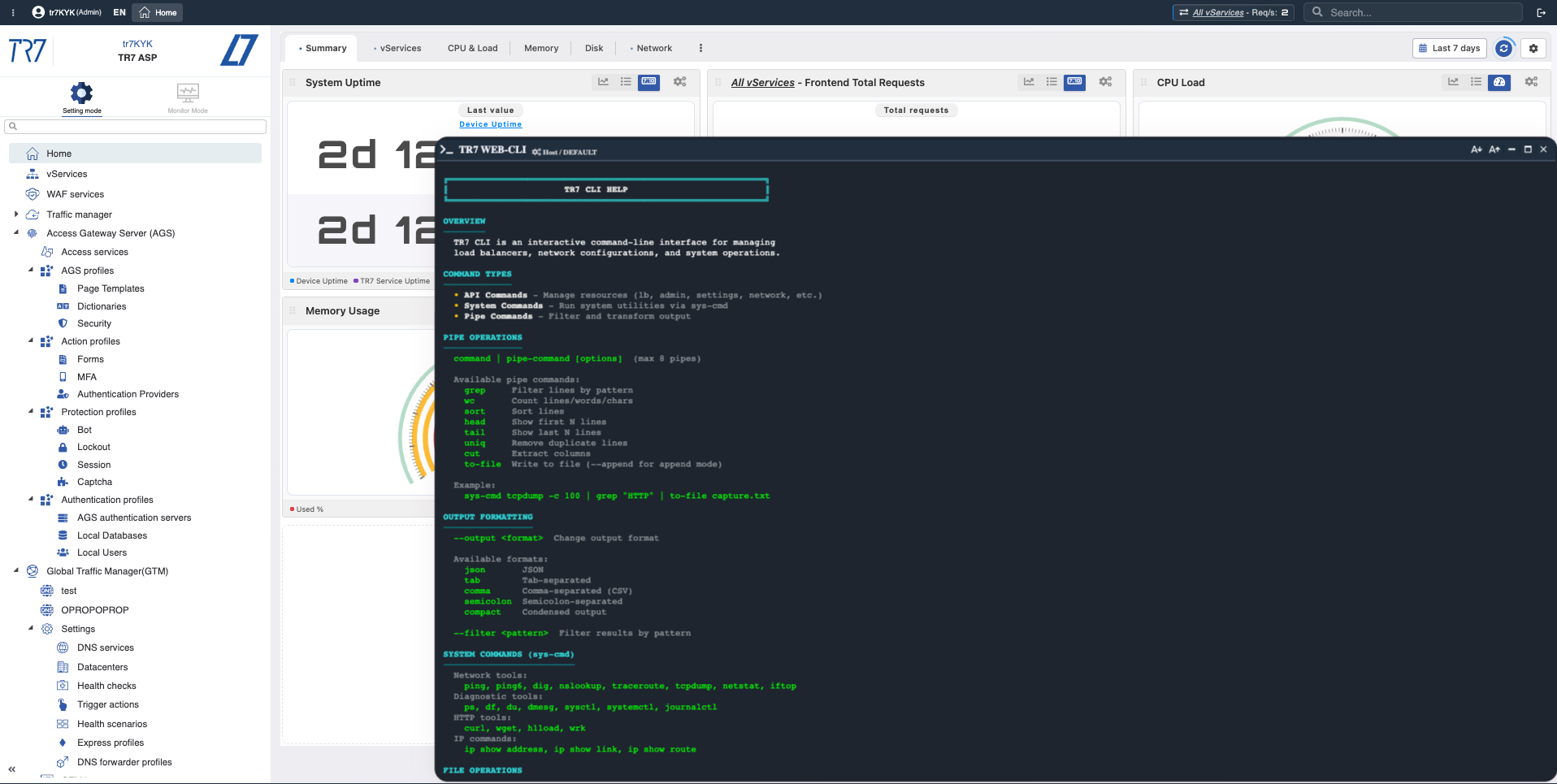
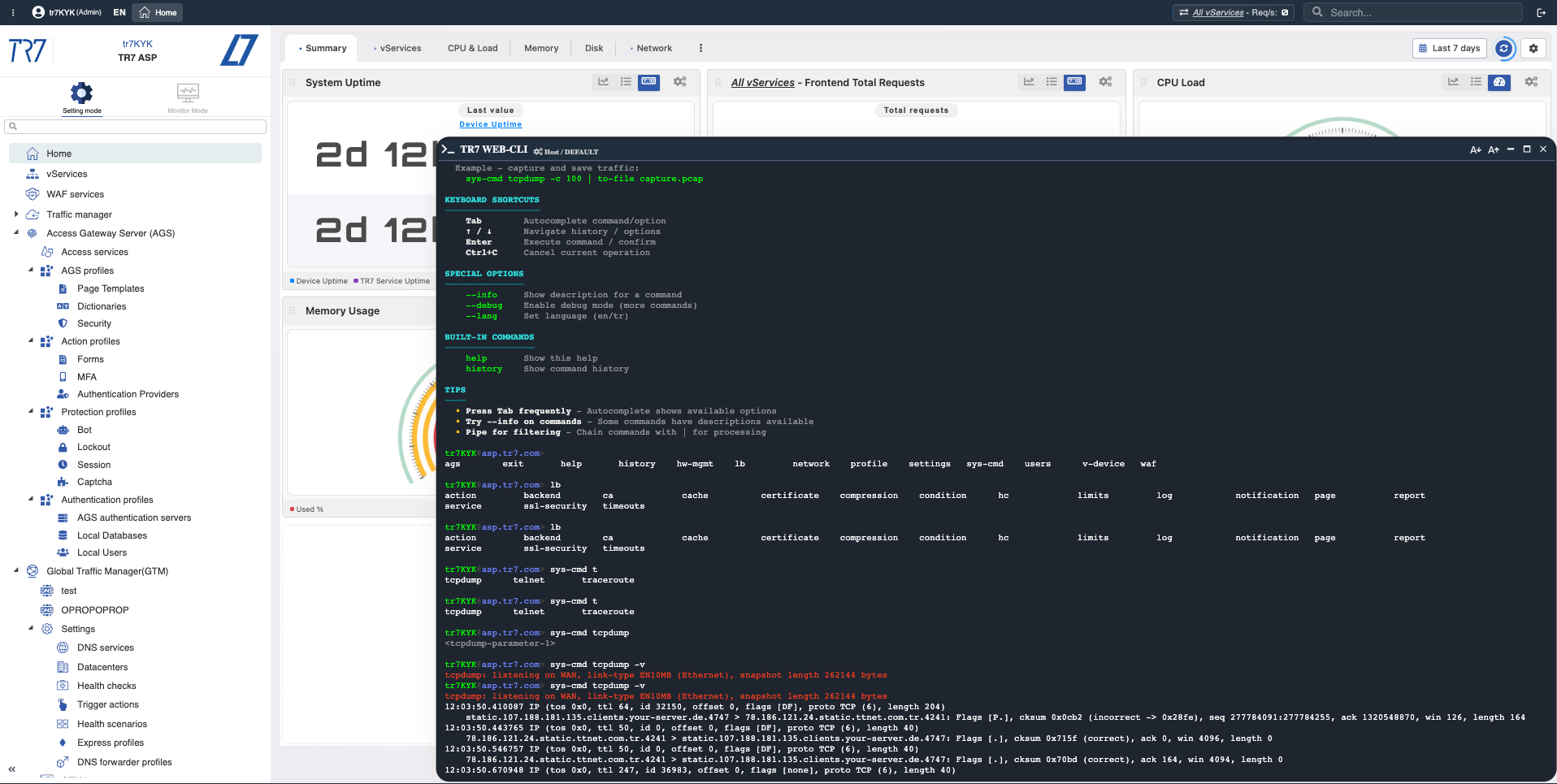
Metrics provide a hypothesis; sometimes commands are needed for verification. Run ping, traceroute, curl, tcpdump from the Web Console. No SSH required — results appear on the same screen.
Web Console: Diagnostic commands from web UI — backend connectivity, DNS, route verification done quickly.
Web Console & TR7 CLI: Instant diagnostics and evidence collection from UI
Investigation on TR7 doesn't stop at charts. Web Console enables running the most-needed system and network commands from the web interface in production. No SSH required. TR7 CLI brings the same capability to the command line; output formats (JSON/CSV/tab) and pipe commands make investigation steps repeatable.
Network check: ping, traceroute, dig, iftop
Verify backend connectivity, DNS resolution, path analysis, and real-time bandwidth distribution from the appliance.
Targeted traffic capture: tcpdump, ssldump
Capture packets for specific host/port. Inspect TLS handshakes. Save only relevant traffic to file.
Backend testing: curl, wrk
Measure backend response code and time from ADC's perspective. Run controlled load tests when needed.
System status: netstat, ps, df, journalctl
View TCP states, processes, disk usage, and system logs from a single screen.
Web Console: Example Investigation Flows
You spotted a warning in the Flow Panel. The following flows are practical examples for quick triage.
Backend timeout or network issue?
Metrics show timeout
ping backend-ip → is it reachable?
curl -I http://backend:8080/health → what's the response code?
traceroute backend-ip → any breaks along the path?
Result: Network or application — separated quickly
TLS error: client or server?
SSL connection error exists
ssldump -i wan0 host client-ip → capture the handshake
Identify certificate, protocol, or cipher mismatch
Result: Client or server configuration — proven with packets
Sudden traffic spike: attack or real load?
Request count suddenly increased
iftop -i wan0 → see real-time top talkers
netstat -an | grep ESTABLISHED | wc → connection count
Metric Library: Retrospective Monitoring and Analysis Charts
The headings below are metric chart group titles in TR7's interface. Each group contains charts where related metrics can be monitored and analyzed retrospectively. These charts let you examine specific time ranges during or after an incident, see trends, and detect anomalies.
Frontend Total Requests
Total Requests
What?Shows total HTTP/HTTPS request count to the service over time.
Why important?Fundamental reference for understanding traffic spikes, sudden drops, and capacity impact. Enables before/after incident comparison.
Frontend Status Code Distribution
Status Code Distribution
What?Shows distribution of HTTP response codes (2xx success, 3xx redirect, 4xx client error, 5xx server error) over time.
Why important?Quickly spot error rate increases. 5xx spike may indicate backend issues; 4xx spike may indicate client-side or configuration problems.
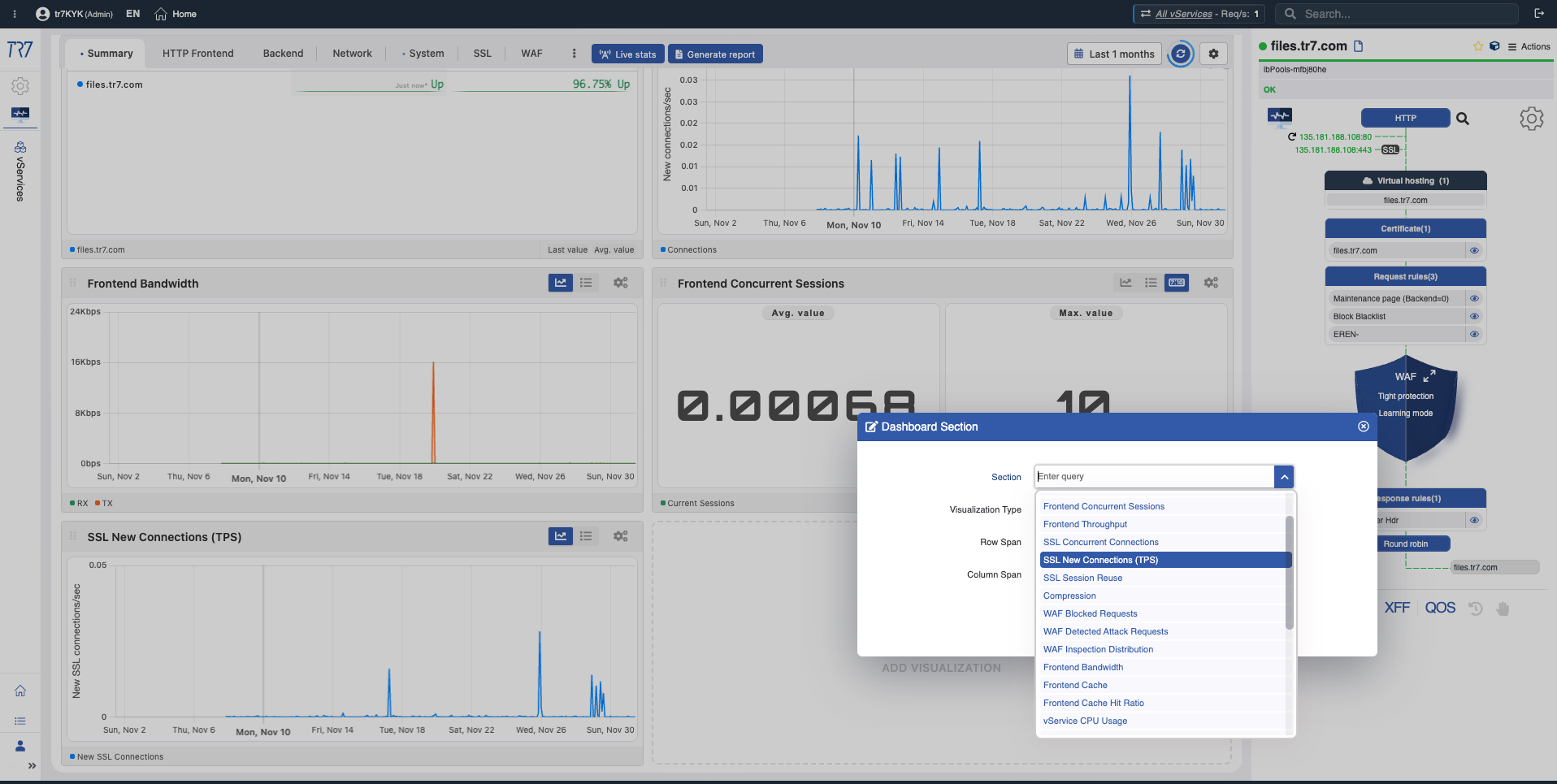
Frontend New Connections
New Connections
What?Shows new TCP connections opened per second.
Why important?Sudden connection increases may indicate DDoS attacks, bot activity, or client-side reconnection issues.
Frontend Concurrent Sessions
Concurrent Sessions
What?Shows simultaneously active session count.
Why important?Helps understand how close you are to capacity limits. Approaching session limits can cause performance degradation.
Frontend Throughput
Throughput
What?Shows total data volume passing through the service (bits/sec or bytes/sec).
Why important?Used to understand bandwidth usage and traffic trends. Throughput drops may indicate network or backend issues.
SSL Concurrent Connections
SSL Concurrency
What?Shows simultaneously active encrypted TLS connection count.
Why important?SSL/TLS operations are CPU-intensive; this metric is critical for capacity planning and performance analysis.
SSL New Connections (TPS)
TLS Handshake TPS
What?Shows TLS handshakes performed per second.
Why important?Sudden handshake rate increases may indicate session reuse not working or client-side issues. High handshake rates increase CPU load.
SSL Session Reuse
SSL Session Reuse
What?Shows TLS session reuse rate and statistics.
Why important?Low session reuse causes unnecessary CPU usage and higher latency. This metric guides TLS performance optimization.
Compression
Compression
What?Shows HTTP response compression ratio and compressed data volume.
Why important?Compression saves bandwidth but uses CPU. Understanding this balance is important for performance optimization.
WAF Blocked Requests
WAF Blocked Requests
What?Shows request count blocked by Web Application Firewall over time.
Why important?Sudden increase in blocks may indicate an attack wave or a new rule producing false positives. Either case requires investigation.
WAF Detected Attack Requests
WAF Detected Attacks
What?Shows count and types of attack attempts detected by WAF.
Why important?Lets you track threat level and attack trends. Understanding which attack types are attempted and how often is valuable for security strategy.
WAF Inspection Distribution
WAF Inspection Distribution
What?Shows what proportion of WAF rules and categories are triggered.
Why important?Shows which rule sets are active and which fire most often. Fundamental data for rule tuning and optimization decisions.
Frontend Bandwidth
Bandwidth
What?Shows incoming and outgoing bandwidth used by the service.
Why important?Used to monitor link saturation and throughput changes. Approaching bandwidth limits can cause performance issues.
Frontend Cache
Cache
What?Shows the service's cache behavior, data written to and read from cache.
What?Shows what percentage of requests are served from cache.
Why important?High hit ratio reduces backend load and shortens response times. Hit ratio drops require investigating cache configuration or content changes.
vService CPU Usage
vService CPU Usage
What?Shows CPU usage percentage attributed to this service.
Why important?Lets you see how much CPU a single service consumes. One service using excessive CPU can affect others.
vService Memory Usage
vService Memory Usage
What?Shows memory usage attributed to this service.
Why important?Used for trend analysis and capacity planning. Continuously increasing memory usage may signal a problem.
vService Uptime
vService Uptime
What?Shows time elapsed since the service's last restart.
Why important?Lets you correlate service restarts with incident timelines. Unexpected restarts require investigation.
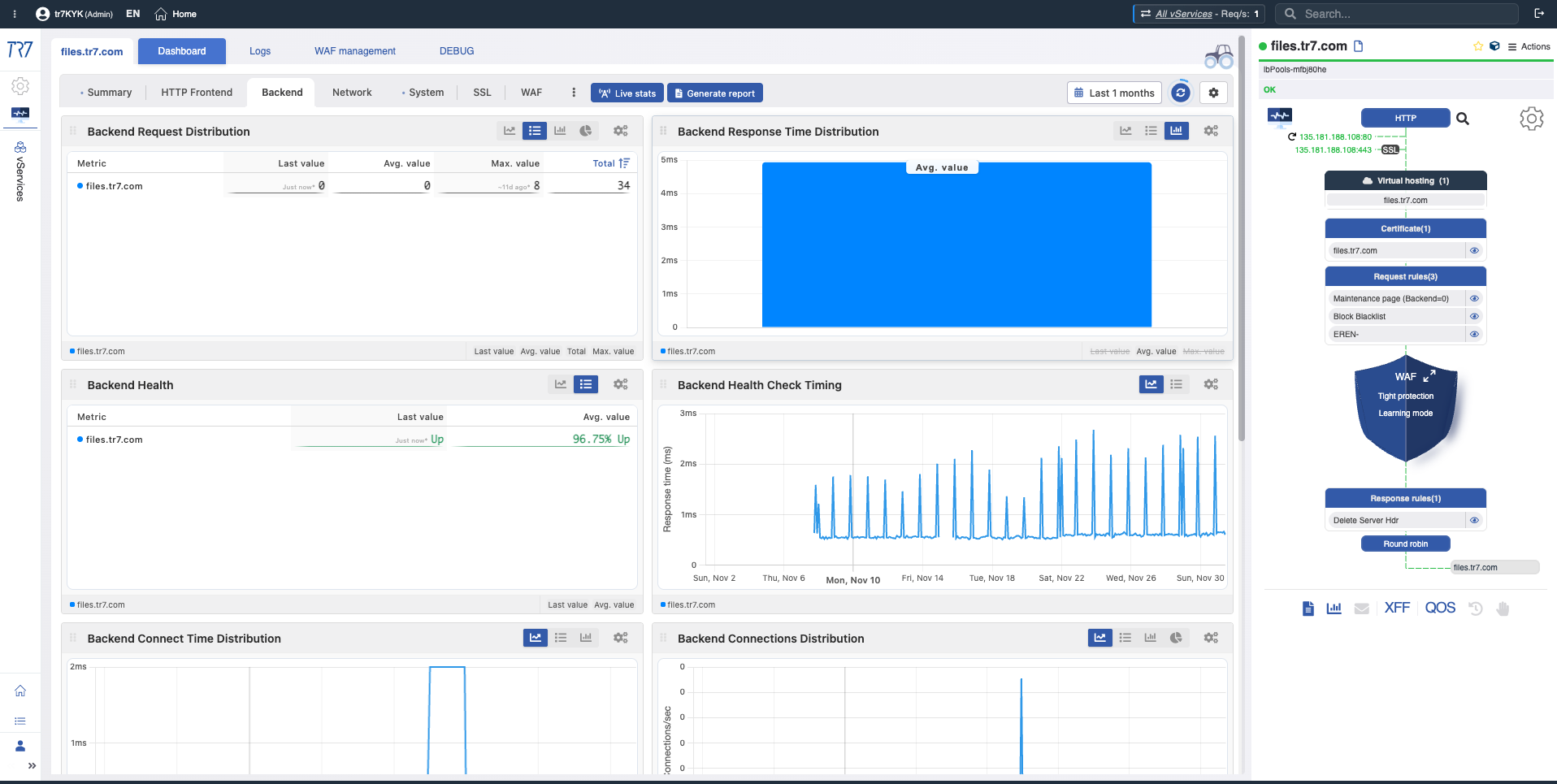
Backend Request Distribution
Backend Request Distribution
What?Shows how incoming requests are distributed among backend servers.
Why important?Lets you detect unbalanced load distribution. A backend receiving disproportionately more or fewer requests may indicate configuration or health issues.
Backend Response Time Distribution
Backend Response Time Distribution
What?Shows each backend server's average response time comparatively.
Why important?Lets you quickly identify slow backends. If one backend's response time is significantly higher than others, there may be an issue with that server.
Backend Health
Backend Health
What?Shows health-check results and health status for each backend server.
Why important?Lets you instantly see which backends are healthy, down, or degraded.
Backend Health Check Timing
Health Check Timing
What?Shows how often health-checks run and their response times.
Why important?Lets you detect health-check timing issues. Slow health-check responses can delay detection of a problematic backend.
Backend Connection Time Distribution
Connection Time Distribution
What?Shows distribution of connection establishment time to backends.
Why important?Helps detect network delays and TCP connection issues. High connection time indicates network or backend-side problems.
Backend Connection Distribution
Connection Distribution
What?Shows distribution of active connections among backends.
Why important?Lets you monitor sticky session behavior and load balance. Disproportionate connection accumulation on one backend can cause performance issues.
Backend Bandwidth IN Distribution
Bandwidth IN Distribution
What?Shows bandwidth distribution of traffic going to backends.
Why important?Lets you see which backends receive how much traffic. A backend receiving excessive traffic may become a bottleneck.
Backend Bandwidth OUT Distribution
Bandwidth OUT Distribution
What?Shows bandwidth distribution of response traffic from backends.
Why important?Helps understand backend response sizes and traffic patterns. Backends producing large responses affect bandwidth planning.
Backend Session Distribution
Session Distribution
What?Shows distribution of active sessions among backends.
Why important?Lets you monitor session persistence behavior and per-backend session density.
Backend Queue Distribution
Queue Distribution
What?Shows queue status of requests waiting to be routed to backends.
Why important?Queue buildup is an early signal of insufficient backend capacity. As queues fill up, response times increase.
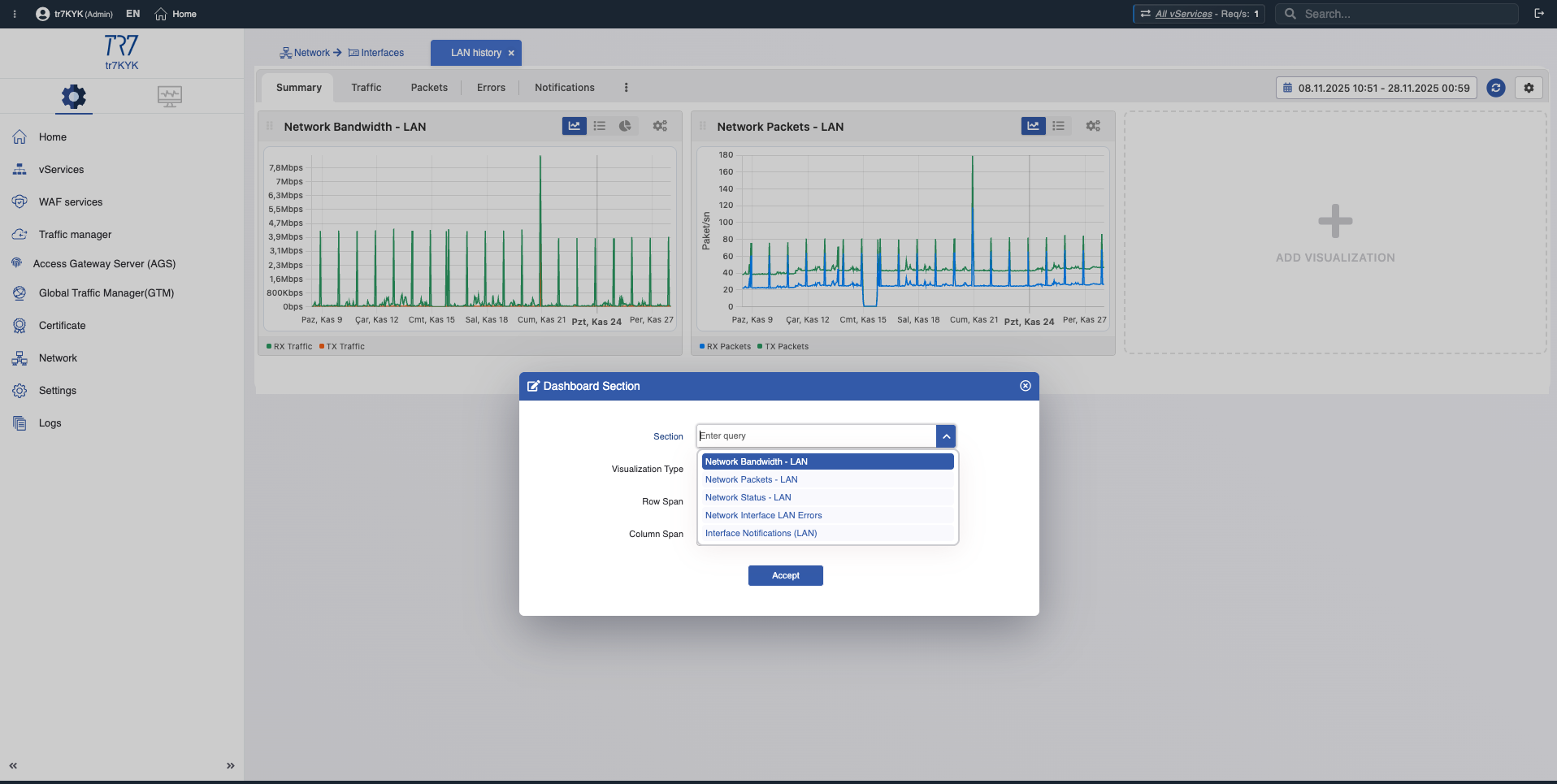
Network Bandwidth - WAN
WAN Bandwidth
What?Shows total traffic volume passing through the WAN interface.
Why important?Lets you see how close you are to link capacity. Link saturation causes packet loss and latency increase.
Network Packets - WAN
WAN Packets
What?Shows packets processed per second (PPS).
Why important?PPS anomalies may indicate DDoS attacks or network issues. High PPS with low bandwidth indicates small-packet flood.
Network Status - WAN
WAN Status
What?Shows network interface operational status (up/down) and link quality.
Why important?Lets you instantly detect link status changes. Intermittent link downs cause connectivity issues.
Network Interface Errors
Interface Errors
What?Shows errors occurring on the interface (CRC, collision, drop, etc.).
Why important?Interface errors may indicate physical cable issues, MTU mismatches, or hardware failures.
Interface Units (WAN)
Interface Units
What?Shows status of sub-interfaces and VLANs.
Why important?Lets you monitor each sub-unit's status separately in complex network topologies.
Device CPU Usage
Device CPUSystem CPU
What?Shows the device's total CPU usage percentage.
Why important?High CPU usage affects all services' performance. Consistently high CPU requires capacity increase or optimization.
Device CPU Temperature
CPU Temperature
What?Shows CPU operating temperature.
Why important?High temperature can cause thermal throttling and performance degradation. Excessive temperature increases hardware failure risk.
System Uptime
System Uptime
What?Shows time elapsed since the device was last started.
Why important?Lets you detect unexpected reboots. If uptime reset, investigate why the device restarted.
System Load
System LoadLoad Average
What?Shows 1, 5, and 15 minute system load averages.
Why important?Helps understand how busy the system is. If load average consistently exceeds CPU count, the system is overloaded.
Total Memory Usage
Total Memory Usage
What?Shows total memory amount used by the system.
Why important?Lets you track memory consumption over time. Continuously increasing memory usage may indicate a memory leak.
Available Memory
Available Memory
What?Shows memory amount available for new processes.
Why important?Low available memory can prevent new connections and processes from starting.
Memory Usage Ratio
Memory Usage %
What?Shows what percentage of total memory is used.
Why important?Used for capacity planning and threshold-based alerts. Usage above 90% is critical level.
Swap Usage
Swap Usage
What?Shows usage of swap space on disk.
Why important?Swap usage indicates physical memory is insufficient. Active swap usage causes significant performance degradation.
Disk Usage
Disk Usage
What?Shows used disk space amount.
Why important?Lets you monitor disk fill rate. If disk fills up, log writing may stop and system may become unstable.
Disk Capacity
Disk Capacity
What?Shows total disk capacity.
Why important?Reference point for capacity planning and growth trend analysis.
Disk Usage Ratio
Disk Usage %
What?Shows what percentage of disk capacity is used.
Why important?Above 90% is warning, above 95% is critical level. Disk fullness requires log rotation and archiving planning.
Disk Inode Usage
Inode Usage
What?Shows filesystem inode usage.
Why important?Even with free disk space, if inodes are exhausted, new files cannot be created. Critical for systems with many small files.
Disk I/O Read
Disk Read I/O
What?Shows disk read operations per second and speed.
Why important?High read I/O may indicate disk bottleneck. Especially important for non-SSD systems.
Disk I/O Write
Disk Write I/O
What?Shows disk write operations per second and speed.
Why important?Log and audit writing constantly generates disk I/O. If write speed drops, log loss risk occurs.
Disk I/O Latency
I/O Latency
What?Shows average completion time for disk operations.
Why important?High I/O latency is an early signal of disk performance degradation. Latency increase affects overall system performance.
TCP Connection Count
TCP Connections
What?Shows total TCP connection count on the system.
Why important?Lets you see if you're approaching connection limits. If connection limit is exceeded, new connections are rejected.
Why important?Indicator of actual workload. Established connection count directly relates to capacity.
TCP TIME_WAIT
TIME_WAIT
What?Shows connection count waiting in TIME_WAIT state.
Why important?High TIME_WAIT count indicates port exhaustion risk. Short-lived connections and heavy traffic cause TIME_WAIT buildup.
TCP CLOSE_WAIT
CLOSE_WAIT
What?Shows connection count waiting in CLOSE_WAIT state.
Why important?High CLOSE_WAIT count indicates application not properly closing connections. This is usually an application-side bug.
TCP Retransmit
Retransmissions
What?Shows TCP packet retransmission count.
Why important?Retransmission increase indicates network quality issues, packet loss, or congestion. High retransmission rate causes latency increase and throughput drop.
vService Total Requests
Total vService Requests
What?Shows total request count for all vServices in one chart.
Why important?Lets you understand total traffic volume and trends across the device. Fundamental reference for capacity planning and overall load assessment.
vService Total Connections
Total vService Connections
What?Shows total active connection count for all vServices.
Why important?Lets you monitor connection pressure and connection table usage across the device. Approaching connection table limits can cause new connections to be rejected.
Integrations: available, but investigation doesn't depend on them
TR7 can integrate with your organization's monitoring and log management ecosystem. The critical difference: incident investigation doesn't depend solely on external pipelines. External systems add value; on-appliance records serve as the fundamental reference.
Frequently Asked Questions
The goal is having investigation-required data always ready on the appliance. External export and centralized archiving are supported. However, investigation success doesn't depend solely on export configuration.
The goal isn't to look at everything all the time. Categories, search, and filtering let you quickly reach the right signal when needed.
Web Console's goal isn't unrestricted access but controlled diagnostics. When used with proper authorization and runbooks, it shortens investigation time.
It's real-time. Service states are monitored at runtime and changes are immediately reflected as color changes. Additionally, retrospective metric and event records are retained.
Normal debug typically captures all traffic and requires filtering afterward. Targeted debug captures records only for specific host, port, path, or header from the start. This reduces noise, speeds up investigation, and minimizes production impact.
TR7 supports Prometheus export and SIEM log forwarding. Integrations retain their value. The difference: investigation-required data doesn't depend solely on external systems—it's also ready on the appliance.
Retention period is configurable. What matters is that user actions and config changes are kept on the same timeline as metrics and event records.
Detail is preparedness, not complexity. Even in small teams, quickly reaching the right data during an incident saves time. Categorized structure and search features make it easy to focus only on needed data.
Conclusion
TR7's claim isn't 'more charts'—it's making the ADC/WAF layer investigation-ready. vService/backend/interface metrics, event/notification records, audit trail, and HTTP/WAF visibility combine on a single timeline; retroactive forensics and targeted debug accelerate root cause analysis.
Export integrations are valuable; but to minimize the 'wasn't sent, so doesn't exist' risk during critical moments, the chain of evidence must remain accessible inside the product at all times.
These and similar capabilities—details that don't appear on datasheets, are hard to grasp in demos, yet define operational quality in practice—are the primary reason why nearly all organizations that evaluate TR7 decide to make the switch.